
Leaderboard


Popular Content
Showing content with the highest reputation on 12/08/2023 in all areas
-
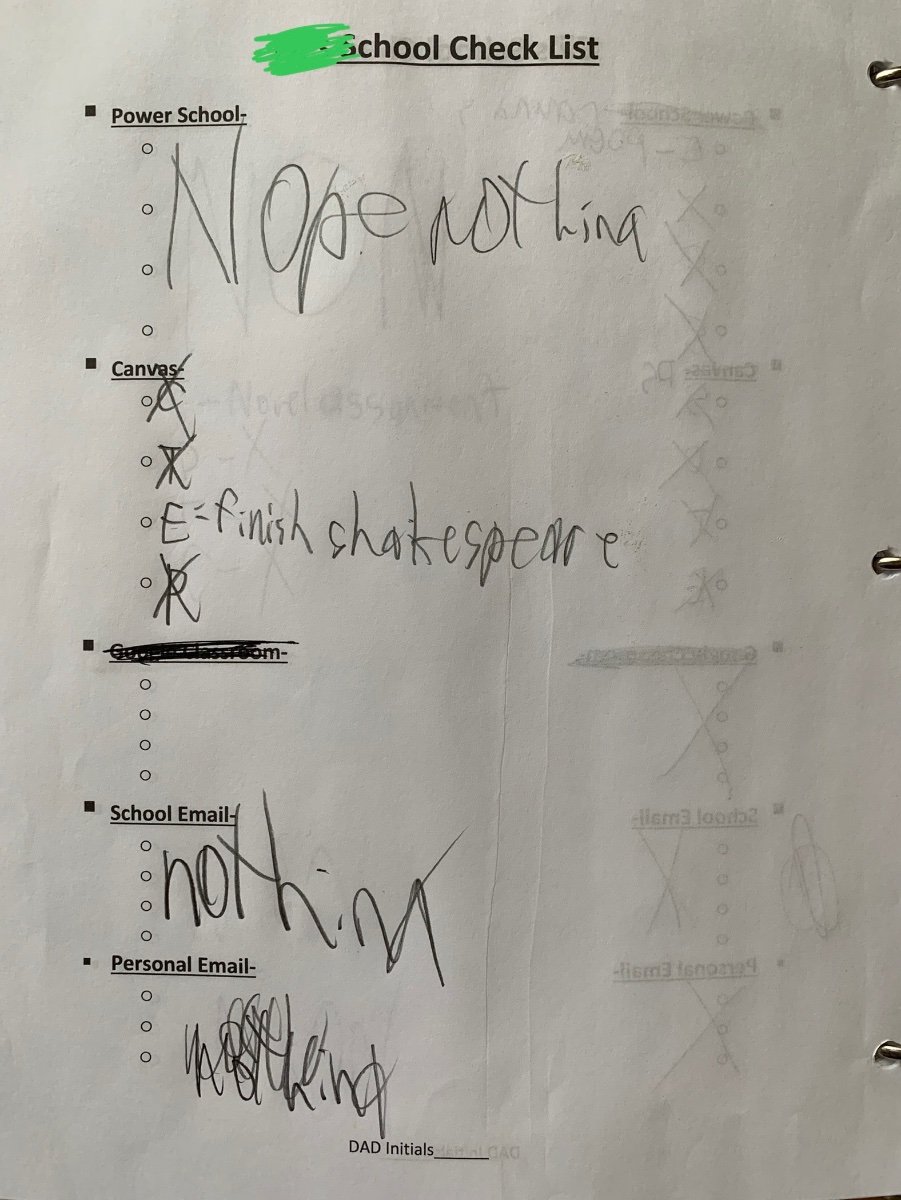
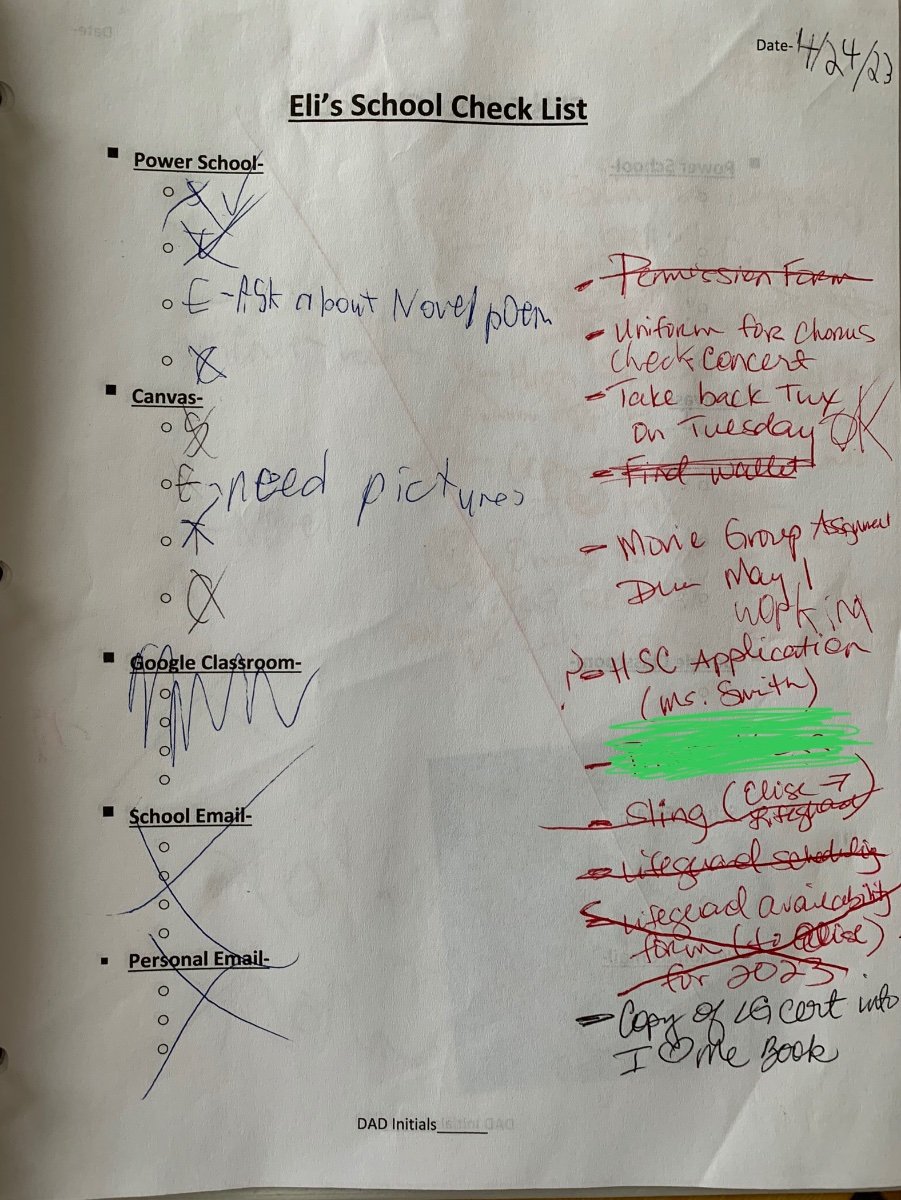
I created a form for him to fill out every day after school. Made a bunch of copes and put them in a tiny 3 ring binder (hard back). This stays at home and next to our kitchen table. Front of it has an expectations page. Every day he comes home from school and can not pass “go” without filling it out. Because I know he could just put “nothing” and walk away . . . 1. Sit at kitchen table. 2. Use chromebook and check “assignments” and “grades” for every class in Canvas 3. Check school email 4. check personal email 5. check phone calendar - This is done when you arrive home, before you recluse into your room, watch tv, etc. - you can complete items you listed then or after you recluse to your room, etc. Lie or not be forthcoming and there will be circumstances. 1. no screens the day I figure it out. 2. I’ll sit and do it with you for a week Do this daily and 1. I don’t have to ask you as many questions 2. It’ll help you develop a good habit for post-secondary 3. $4/ day paid to you on Fridays for every day it’s done. S- science T - theatre E - English C - (I don’t remember) First photo is nonsense example. Second shows mom stepping in. Didn’t implement start of this year and he’s about to be in a hole again.
 1 point
 -
Wow! That is great. Especially appreciate the study guide 3-5 days in advance. Our school would only agree to provide notes if the wording "when available" followed. Thanks for your reply.1 point
This leaderboard is set to New York/GMT-04:00